My Reports and My Tickets
Updated by Maxime_48 · 1 week ago · Views: 263
My Reports and My Tickets let users track Discord reports and tickets they submitted from servers using YAWBDB.
This gives users a way to follow up from the panel instead of relying only on Discord channels.
📋 Requirements
To use these pages, your Discord account must be linked to your YAWBDB panel account.
If your account is not linked, go to:
Profile → Linked Accounts → Connect Discord
🚪 How to access
Open your profile menu in the top-right corner.
If available, you will see:
- My Reports
- My Tickets
These pages appear when they are relevant to your account.
📥 My Reports
My Reports shows reports you submitted through /report on Discord servers using YAWBDB.
You can:
- View the report thread
- Read staff replies
- Reply from the panel
- Watch status updates in real time
🎫 My Tickets
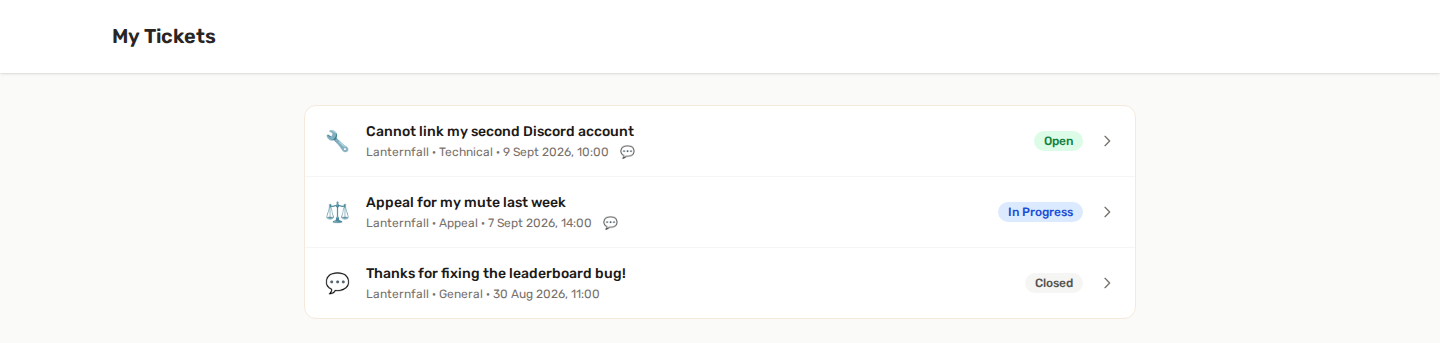
My Tickets shows support tickets you opened through /ticket on Discord servers using YAWBDB.
You can:
- View the ticket conversation
- Reply to staff
- Check the ticket status
- Follow updates without refreshing
🔄 Discord sync
Messages can sync between Discord and the panel.
If a Discord thread or channel exists for the report or ticket, replies may appear in both places.
🔗 Why link your Discord account?
Linking your Discord account lets YAWBDB know that your panel account and Discord user are the same person.
This is required for:
- My Reports
- My Tickets
- Appeal tracking
- Some user-specific notifications
🔧 Troubleshooting
📥 I do not see My Reports or My Tickets
Make sure your Discord account is linked and that you have submitted a report or ticket on a server using YAWBDB.
🚨 My report is missing
The report may have been submitted before your account was linked, or it may belong to a different Discord account.
🚨 I cannot reply
A report that is resolved or dismissed, and a ticket that is closed, no longer accept replies.