Sanctions and appeals
Updated by Maxime_48 · 1 week ago · Views: 352
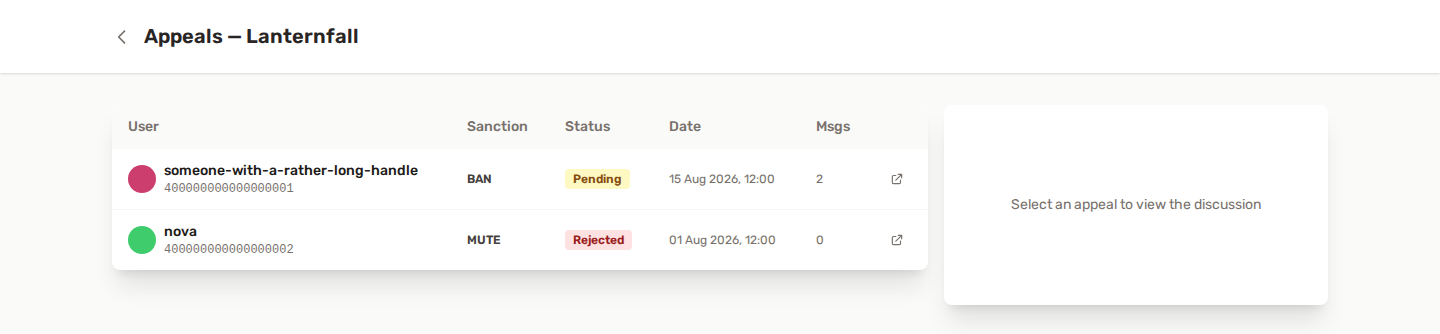
YAWBDB can create appeal links when a member receives a sanction.
Appeals give sanctioned users a structured way to contact your staff team, while keeping the conversation organized in the panel.
⚖️ What is an appeal?
An appeal is a request from a sanctioned user asking staff to review a moderation decision.
Depending on your configuration, appeals may be created for actions such as:
- Ban
- Mute
- Warn
Appeals are created for these three types only (ban, mute and warn), and only while the Moderation feature is enabled on the server. A kick or a softban never has one.
The exact behavior may depend on how your server configured moderation.
🚪 How users access appeals
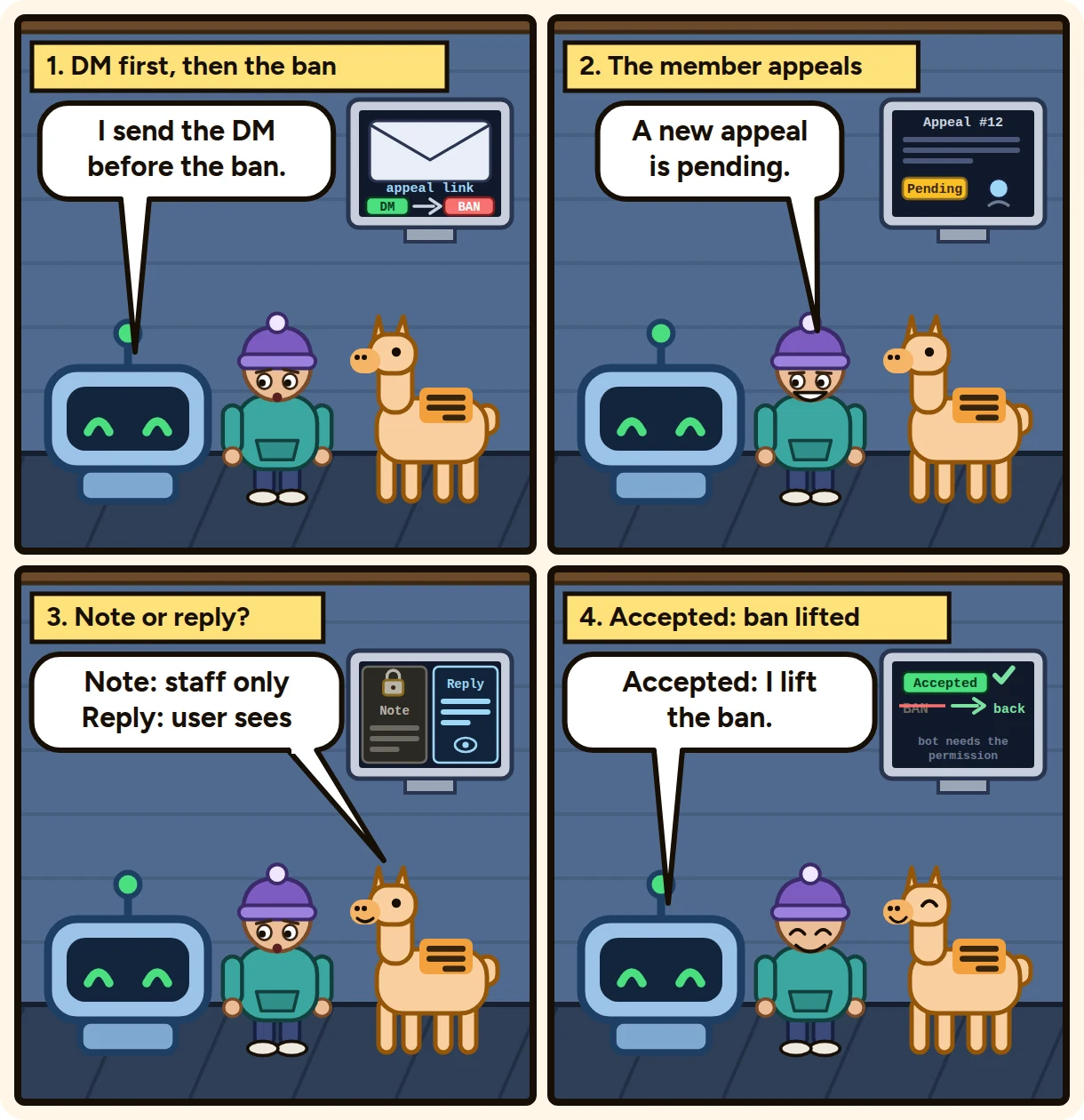
When a sanction is applied, YAWBDB may send the user a direct message containing an appeal link.
A sanction that Discord refuses, for example a ban on a member the bot's role cannot reach, no longer sends the member a message saying they were banned.
The user can open the link to:
- Read the current appeal status
- Submit an appeal message
- Add follow-up context
- View the staff response
Some appeal links can be accessed without a full panel account, depending on the flow used when the appeal was created.
🏷️ Appeal statuses
Appeals can move through statuses such as:
- Pending
- Under Review
- Accepted
- Rejected
- Closed
Status names may vary slightly depending on the page.
⏰ Appeal window & auto-close
In the Moderation feature settings you can set an appeal window - how long after a sanction the user can appeal (24 hours up to 30 days, or always open).
With Auto-close expired appeals enabled (it needs an appeal window other than Always open), appeals that are still open when their window expires are closed automatically. The check runs every 30 minutes:
- A system notice is posted in the appeal thread - the default text, or your own auto-close message.
- The user is notified by DM with a link to their appeal page.
- The action appears in your moderation log channel as Appeal auto-closed.
Once closed - automatically or by staff - the user can no longer write in the thread. Only a moderator can reopen a closed appeal.
🔓 Reopening a closed appeal
Staff can reopen any closed appeal from its detail page (Reopen button). The appeal goes back to Under Review, and the user can reply again - even if the appeal window has expired, an explicit reopen overrides it. Reopened appeals are never auto-closed again.
👮 Staff workflow
Staff can review appeals from the panel.
A typical workflow:
- Open the server moderation area.
- Go to Appeals.
- Review pending or open appeals.
- Read the user's message and history.
- Add an internal note if needed.
- Write a response visible to the user.
- Accept or reject the appeal.
If an appeal is accepted for a ban or a mute, YAWBDB lifts it automatically (unban or unmute) when the bot has permission to do so. For a kick, softban or warn there is nothing active to lift, so accepting only records the decision.
📦 Decide several appeals at once
On the Appeals list, tick the box at the start of each row, or the box in the header to select every appeal of the displayed page (up to 50 at a time). A bar appears with the number selected, the actions Review, Accept, Reject, Close and Reopen, and an optional reply sent to each user.
Accepting or rejecting asks for confirmation first. Accepting lifts the sanction behind each appeal, exactly as on a single appeal.
Each appeal is judged on its own. One that cannot take the action (already closed, for example) is skipped and listed with the reason; the others go through. The report reads "N done, M not applicable", and the skipped appeals stay ticked. If the bot does not answer, the group stops at the first appeal and the rest is left untouched: try again once the bot is back. Ticks only apply to the appeals shown: changing page clears the ones that left.
🗒️ Internal notes
Staff can keep internal notes that are not visible to the sanctioned user.
Use internal notes for:
- Staff-only context
- Evidence summaries
- Team discussion points
- Reasons for accepting or rejecting the appeal
Do not put sensitive information in a user-visible response.
👁️ User-visible responses
The response message is shown to the user.
Good responses are:
- Clear
- Short
- Respectful
- Specific enough to explain the decision
Avoid arguing with the user inside the appeal. The goal is to communicate the final staff decision.
💡 Best practices
- Explain the original reason for the sanction.
- Review the member's history before deciding.
- Keep internal staff discussion separate from the user response.
- Use consistent appeal rules across your moderation team.
- Close old appeals when they are no longer active.
🔧 Troubleshooting
🚨 The user did not receive a DM
Discord users can block DMs from server members or bots. In that case, the DM may fail silently.
Also, not every sanction sends a DM: Honeypot only sends one when DM on trigger is on, and sanctions applied by Anti-Raid send none. Without the DM, the user has no appeal link. The Moderation setting DM user on sanction (Always, Only for bans, Never) decides which sanctions send one; left untouched, every sanction does. This covers sanctions from the panel, the slash commands, the report channel, Automod and Anti-Nuke (Honeypot has its own DM switch, Anti-Raid sends none). With Only for bans, the member is told about a ban or softban and about the lifting of a ban, but not about a mute, kick, warning or lifted mute.
🚨 Accepting the appeal did not unban the user
Check whether the bot has permission to unban users and whether its role is high enough in the Discord role hierarchy.
🚨 The user cannot access the appeal
Make sure they are using the correct appeal link and, if required, that their Discord account is linked to the correct panel account.