Starboard
Updated by Maxime_48 · 1 week ago · Views: 351
Starboard highlights your community's best messages. When a message gets enough star reactions, the bot reposts it to a dedicated starboard channel with a live star count and a link back to the original.
⭐ How it works
- Enable Starboard and pick a starboard channel in the feature settings.
- Members react to any message with the star emoji (⭐ by default).
- Once a message reaches the threshold, the bot reposts it to the starboard channel.
- The star count updates live as members add or remove their reactions. If it drops below the threshold, the post is removed.
A starboard channel must be configured for the feature to work. Reactions from bots, messages written by bots and messages posted in the starboard channel itself are never counted. Each repost shows the message text, the first image attached to it, the source channel and a button with the star count that links back to the original message.
⚙️ Options
| Option | What it does |
|---|---|
| Starboard channel | Where starred messages are reposted. Required. |
| Star emoji | The reaction that counts. Default ⭐; a custom server emoji works too. |
| Star threshold | How many stars a message needs before it's posted (1 to 100, default 3). |
| Allow self-star | Whether the message author's own star counts toward the total. |
| Ignored channels | Messages in these channels are never sent to the starboard. |
📊 Leaderboard
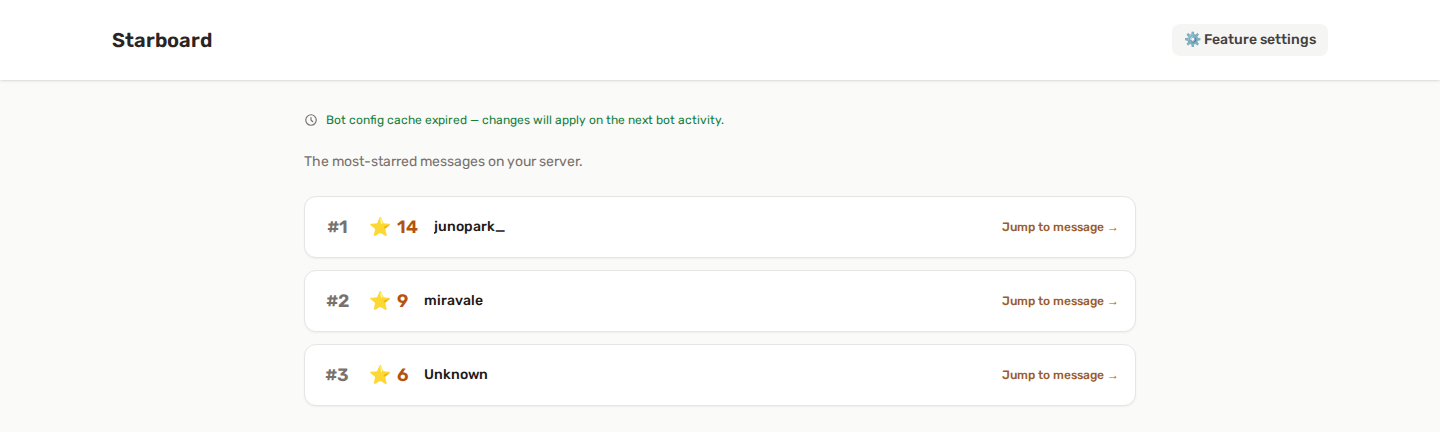
The Starboard page in the panel shows your most-starred messages, ranked by star count (up to 50), each with a link to jump to the original message.
✅ Permissions
Starboard only needs the baseline bot permissions (View Channels, Send Messages, Embed Links) plus the ability to read reactions. It reposts and updates its own messages, so no Manage Messages permission is required. See Feature permissions.
💡 Best practices
- Pick a threshold that fits your server size — too low and everything ends up starred, too high and nothing does. Start at 3–5 and adjust.
- Use a dedicated read-only
#starboardchannel so the highlights stay clean. - Add busy or off-topic channels to Ignored channels to keep the starboard meaningful.
- Leave self-star off so members can't inflate their own messages.