Add YAWBDB to your Discord server
Updated by Maxime_48 · 4 weeks ago · Views: 489
This guide explains how to connect YAWBDB to a Discord server and make it appear in your dashboard.
📋 Requirements
Before adding YAWBDB, make sure that:
- You are logged in to the YAWBDB panel.
- You are logged in to the correct Discord account.
- You have permission to add bots or manage the target Discord server.
- The server is not already connected to another YAWBDB team unless that is intentional.
1️⃣ Step 1 — Open the dashboard
Go to the YAWBDB dashboard and sign in.
After logging in, you should see your server dashboard. If no server is connected yet, the dashboard will invite you to add one.
2️⃣ Step 2 — Add a Discord server
Click the button to add or connect a Discord server.
You will be redirected to Discord's authorization page. Discord will ask you to choose which server you want to add YAWBDB to.
Select the server, review the requested permissions, then confirm.
3️⃣ Step 3 — Return to the panel
After authorizing the bot, you will be redirected back to the YAWBDB panel.
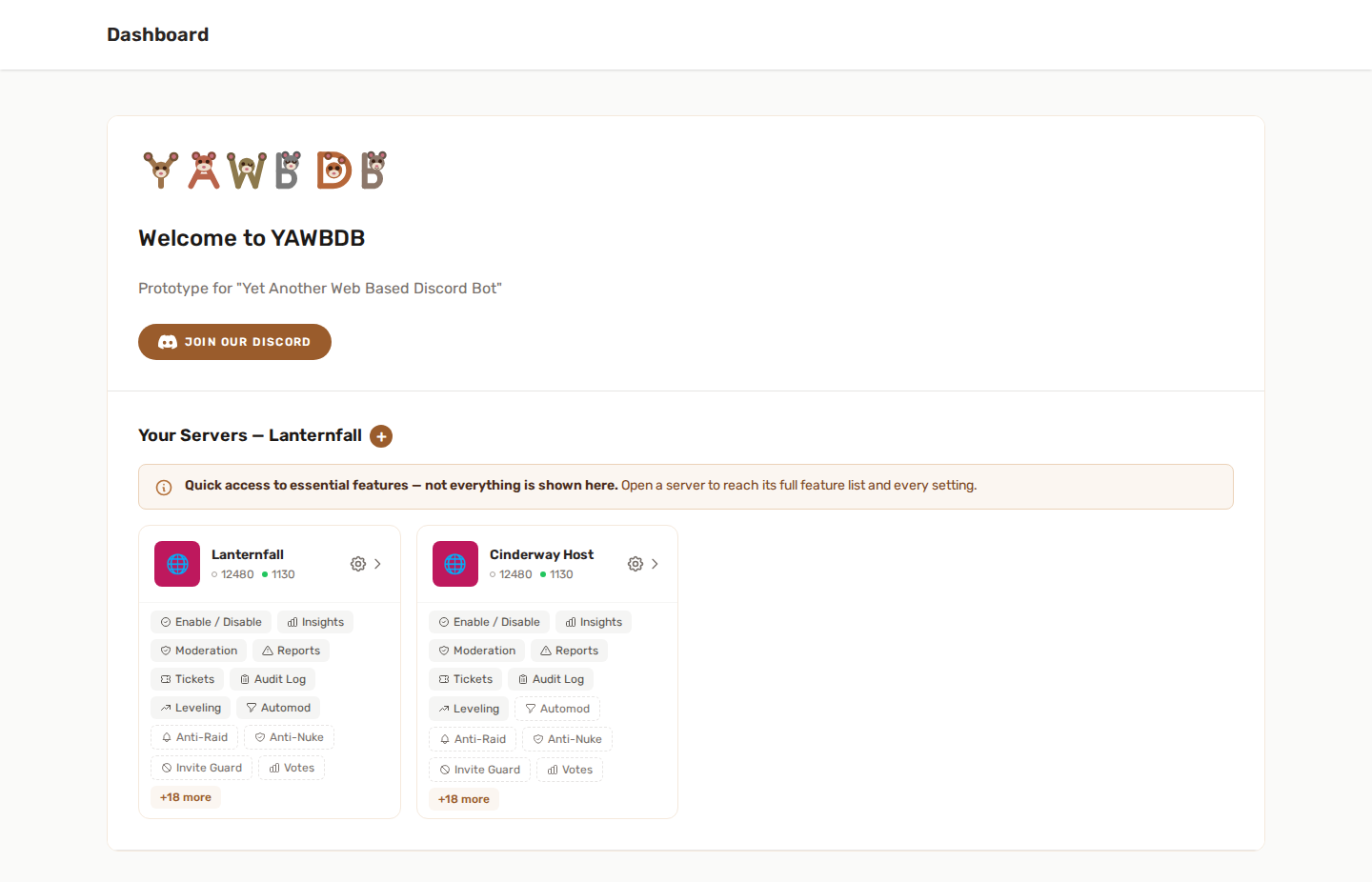
The server should now appear on your dashboard as a server card.
From this card, you can open areas such as:
- Features
- Moderation
- Reports
- Tickets
- Leveling
- Automod
- Server removal, if your role allows it
The exact buttons may depend on which features are enabled and your permissions on the team.
4️⃣ Step 4 — Enable features
Adding the bot only connects it to your server. Most tools still need to be enabled before they start working.
Open the server card, go to Features, then enable the features you want to use.
You can enable only the tools your server needs. Features are independent, so you do not need to use everything at once.
5️⃣ Step 5 — Configure the feature
After activating a feature, open its configuration page.
Most features require at least one setting before they can work correctly. For example:
- A log channel for moderation or Automod
- Staff roles for tickets or reports
- A category for private report or ticket channels
- XP rates for Leveling
- API keys for AI or audio features
🔧 Common issues
🚨 The server does not appear in the dashboard
Make sure you authorized the correct Discord account and selected the correct server during the Discord authorization step.
🚨 I cannot select a server on Discord
Discord only shows servers where your account has the required permissions to add a bot.
🚨 The bot is in the server but the feature does not work
Check that the feature is enabled and configured in the panel. Also make sure the bot has the required Discord permissions for the action it needs to perform.
🔒 A feature appears locked or whitelisted
Some features may be temporarily limited while they are being tested. If this happens, contact the YAWBDB team.