Embed Builder
Updated by Maxime_48 · 1 week ago · Views: 347
The Embed Builder lets you compose real Discord embeds from the panel, with a live preview of exactly what your members will see — then post them to a channel or save them as reusable templates.
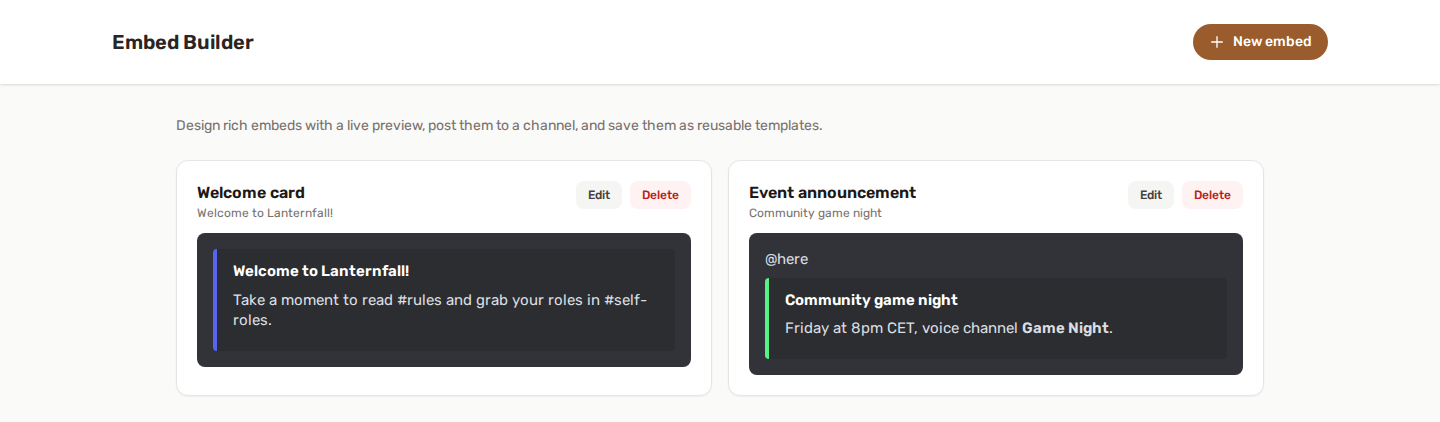
🎨 How it works
- Enable Embed Builder and open the Embed Builder page.
- Click New embed, give it a name, and compose it. The preview on the right updates as you type.
- Save it as a template, or pick a channel and hit Send now.
Everything is managed from the panel — there is no slash command for this feature.
🧱 What an embed can contain
| Part | Notes |
|---|---|
| Colour | The bar down the left side. Use the picker or one of the presets. |
| Author | A small line at the top, with an optional icon. |
| Title | Bold heading. Add a title link to make it clickable. |
| Description | The main text. Supports markdown. |
| Fields | Up to 25. Each has a name and a value; tick Inline to lay them side by side (Discord fits up to three per row). Reorder them with the ↑ ↓ buttons. |
| Image | Large image at the bottom. |
| Thumbnail | Small image in the top-right corner. |
| Footer | Small text at the bottom, with an optional icon. |
| Timestamp | Adds the send time next to the footer. |
You can also write a message above the embed — plain text posted as a normal message, useful for a role mention or a short intro.
Images and icons are given as URLs; the file has to be hosted somewhere public (an image host, a CDN, or any link Discord can reach).
The editor opens on the three things most embeds need: Title, Colour and Description. Everything else (author and its icon, title link, fields, image, thumbnail, footer and its icon, and the timestamp) sits under More options (author, image, footer); the button turns into Fewer options once open, and the section opens by itself when the embed already uses one of them. On a wide screen the preview stays in view beside the editor while you scroll.
Discord's limits are enforced as you type. A title is capped at 256 characters, a description at 4000, a field value at 1024 — and the whole embed at 6000 characters across the title, description, footer, author name and every field. The character counter under the editor turns red before you hit save.
✍️ Markdown in an embed
The description and field values support Discord markdown:
| Syntax | Result |
|---|---|
**bold** |
bold |
*italic* |
italic |
__underline__ |
underlined |
~~strike~~ |
|
`code` |
inline code |
```block``` |
code block |
[text](https://example.com) |
a link |
Links only work in the description and in field values — not in the title (use the title link field for that) and not in the footer, which is a Discord limitation.
💾 Templates
Saving an embed keeps it on the server so you can reuse or tweak it later. Each template has a unique name.
- Edit — reopen it in the editor.
- Delete — remove it. This does not touch messages already posted to Discord.
- Send now — posts whatever is currently in the editor, saved or not, so you can fire off a one-off announcement without cluttering your template list.
Messages sent this way never ping @everyone or @here. Role and member mentions you write in the message above the embed do go through normally.
🔗 Where else the editor shows up
The same editor is used elsewhere in the panel, so you only learn it once:
- Custom Commands — a command whose reply is an embed is composed with the full editor and preview.
- Scheduled Messages — a scheduled message can carry an embed instead of plain text, or alongside it. Tick Attach an embed in the message form.
- Birthdays - the announcement message is composed with the same editor.
Commands you created before the Embed Builder keep working exactly as they were — reopening one simply shows it in the new editor.
🚀 Starting from a saved embed
Each of the three places above offers "Start from a saved embed": pick one of your templates and its content fills the editor as a starting point. The picker only appears once the server has at least one saved embed, and picking one replaces what is currently in the editor.
What you get is an independent copy. Editing the original template afterwards does not change the scheduled message, the custom command reply, or the birthday announcement that started from it - each keeps its own copy from the moment you picked it.
✅ Permissions
Embed Builder only needs the baseline bot permissions (View Channels, Send Messages, Embed Links) in the target channel. See Feature permissions.
If an embed posts but images don't show, the URLs are unreachable from Discord's side — check they're public and served over HTTPS.
💡 Best practices
- Build a template for anything you post repeatedly (rules, events, staff applications) instead of rewriting it each time.
- Use fields for anything list-like — schedules, prices, rosters — with Inline ticked to get neat columns.
- Keep the description short and put the detail in fields; a wall of text in an embed reads worse than in a normal message.
- Preview on a narrow window too: inline fields stack differently on mobile.