Custom Commands
Updated by Maxime_48 · 1 week ago · Views: 350
Custom Commands let you create your own slash commands for your server. Members run /yourcommand and the bot replies with the message or embed you define — no coding required. Everything is managed from the web dashboard.
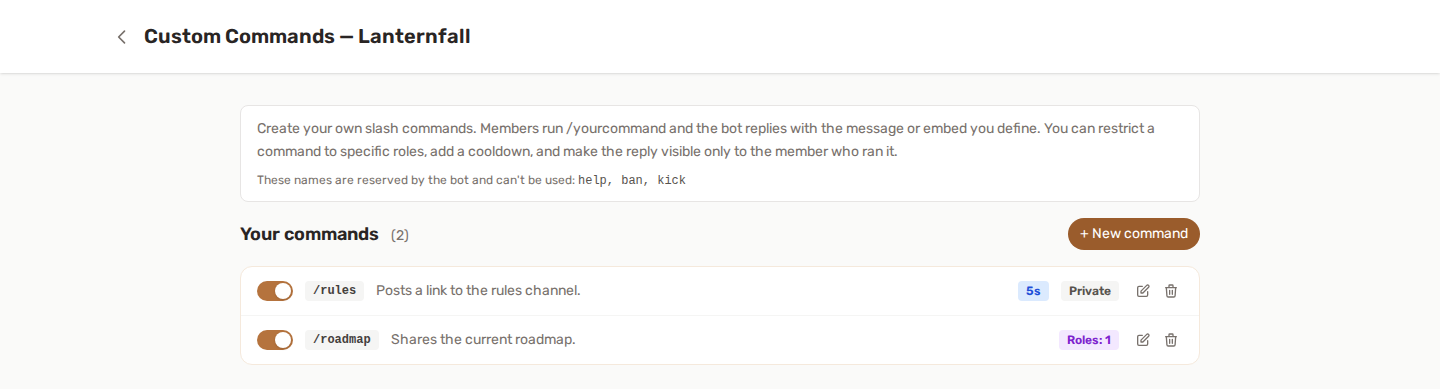
⚡ How it works
- Enable the Custom Commands feature for your server.
- Open the dedicated Custom Commands page.
- Click New command, pick a name and write the reply.
- Save — the command is registered on your server automatically.
Members can use it within a few moments. Whenever you add, edit or delete a command, YAWBDB re-registers your server's commands for you.
Prefer
!rulesto/rules? Set a text prefix on Features → Text commands and every command on this page also answers to it, simple and graph mode alike. Details, and the list of what a prefix cannot reach: Text commands and the prefix.
✍️ Building a command
Each command has:
- Name — what members type after the slash (
/rules,/socials…). Lowercase letters, numbers,-and_only, up to 32 characters. - Description — the short text shown by Discord when browsing your commands (up to 100 characters).
- Command type — a simple response (text or embed, covers most needs) or an advanced graph (a visual node editor, see below).
- Reply type — for simple commands: a plain text message or a rich embed.
Text reply
Just write the message the bot should send (up to 2,000 characters). Great for quick answers, links, or server info.
Embed reply
Build a formatted card with the same editor as the Embed Builder, live preview included, and start from a saved template if you have one:
- Title (with an optional link) and description
- Color (hex, e.g.
#5865F2) - Author, image, thumbnail and footer text
- Up to 25 fields, inline or not
- An optional timestamp
An embed needs at least a title, a description or one field, and Discord caps the whole embed at 6,000 characters. Pick Start from a saved embed to begin from one of your saved embeds: you get an independent copy, so editing the saved one later does not change this one.
🧩 Advanced mode: command graphs
Switch a command to Advanced (graph) to design its behavior in the same visual node editor used by the Leveling reward graph. Instead of a fixed reply, you chain nodes:
- Trigger — every graph starts with a Command used trigger. It fires each time a member runs the command.
- Conditions — has role / doesn't have role, server booster, time window, day of week, server & account age, level range, XP range, streak, prestige.
- Logic — AND / OR / NOT gates, random branch, delay, cooldown, sequence.
- Actions — Reply (the message sent back, required), assign/remove/swap roles, grant XP, send a DM, post to a channel, lock/unlock a channel, assign a title, temporary XP multiplier.
The Reply action
A command graph must contain at least one Reply action - that's the message the member sees. Replies support dynamic variables: {username} (or {user}) mentions the member, then {level}, {xp}, {streak}, {prestige} and {server}. If conditions filter out every Reply for a given run, the bot simply acknowledges the command with a ✓.
{prestige} pairs naturally with the Has prestige condition: gate a reply on a prestige rank, then name that rank in the message.
You can add several Reply actions on different branches — for example a different answer for boosters, or a random pick between multiple responses.
✨ Let the assistant build it
The Graph Assistant can draft a command graph from a description and propose it for you to review.
ℹ️ Checking what a card can do here
Every card has an (i) button that shows what it reads, which field would make it do nothing, and the variables valid on it. It is worth opening in a command graph in particular, because a command carries less information than a leveling event.
The panel crosses out anything unavailable, so you can see it at a glance rather than discovering it on a graph that never fires. A command knows the member's level, XP, streak, prestige, roles, account age and time on the server — but it has no notion of what those values were before, and no XP-event or Wordle context. Cards built around a change, such as On XP threshold, therefore have nothing to compare against here.
Full description of the panel: Reward graph.
Ideas
/daily— a Cooldown node (24h) into a Grant XP + Reply ("Here's your daily bonus!"). While on cooldown the rewarded branch is skipped and the bot just acknowledges with a ✓./color— check a role condition, then randomly assign one of several color roles and confirm with a Reply./vip— booster-only branch that unlocks a channel and replies privately.
The graph editor needs a desktop screen; on mobile you'll see a read-only summary.
⚙️ Options
| Option | What it does |
|---|---|
| Restrict to roles | Only members with one of the selected roles can use the command. Leave empty to allow everyone. Other members get a private "You don't have permission to use this command." |
| Cooldown | Minimum delay (in seconds) between uses, per member, up to 86,400 (24 hours). 0 means no cooldown. A member who is too early gets a private "Please wait Ns before using this command again." |
| Reply only visible to the member | The reply is shown privately (ephemeral) to the person who ran the command. |
| Enabled | Turn a command on or off without deleting it. |
🚫 Reserved names
A custom command can't reuse a name already used by one of the bot's built-in commands (such as rank, leaderboard, trends, report, ticket, wordle, voice…). The dashboard will tell you if a name is taken.
Each command name must also be unique on your server.
📦 Limits
Depending on your setup, the number of custom commands per server may be limited. The page shows your current count against the limit when one applies. Discord itself caps the total number of commands per server, shared with the bot's built-in ones.
👍 Recommended setup
- Enable the feature and open the Custom Commands page.
- Create a simple
/rulesor/infotext command to start. - Add an embed command for something richer, like
/socials. - Use Restrict to roles for staff-only commands.
- Add a small cooldown to commands people might spam.
💡 Best practices
- Keep names short and predictable so members can guess them.
- Use ephemeral replies for answers only the requester needs to see.
- Add a cooldown to fun or noisy commands.
- Disable a command instead of deleting it if you only need it occasionally.