Auto Join Role
Updated by Maxime_48 · 1 week ago · Views: 364
Auto Join Role automatically assigns a Discord role to members when they join your server.
It is useful for onboarding, default access, member labels, or simple community setup.
💼 Common use cases
Auto Join Role can be used to assign:
- Member role
- Unverified role
- Newcomer role
- Community role
- Default access role
⚙️ Configuration
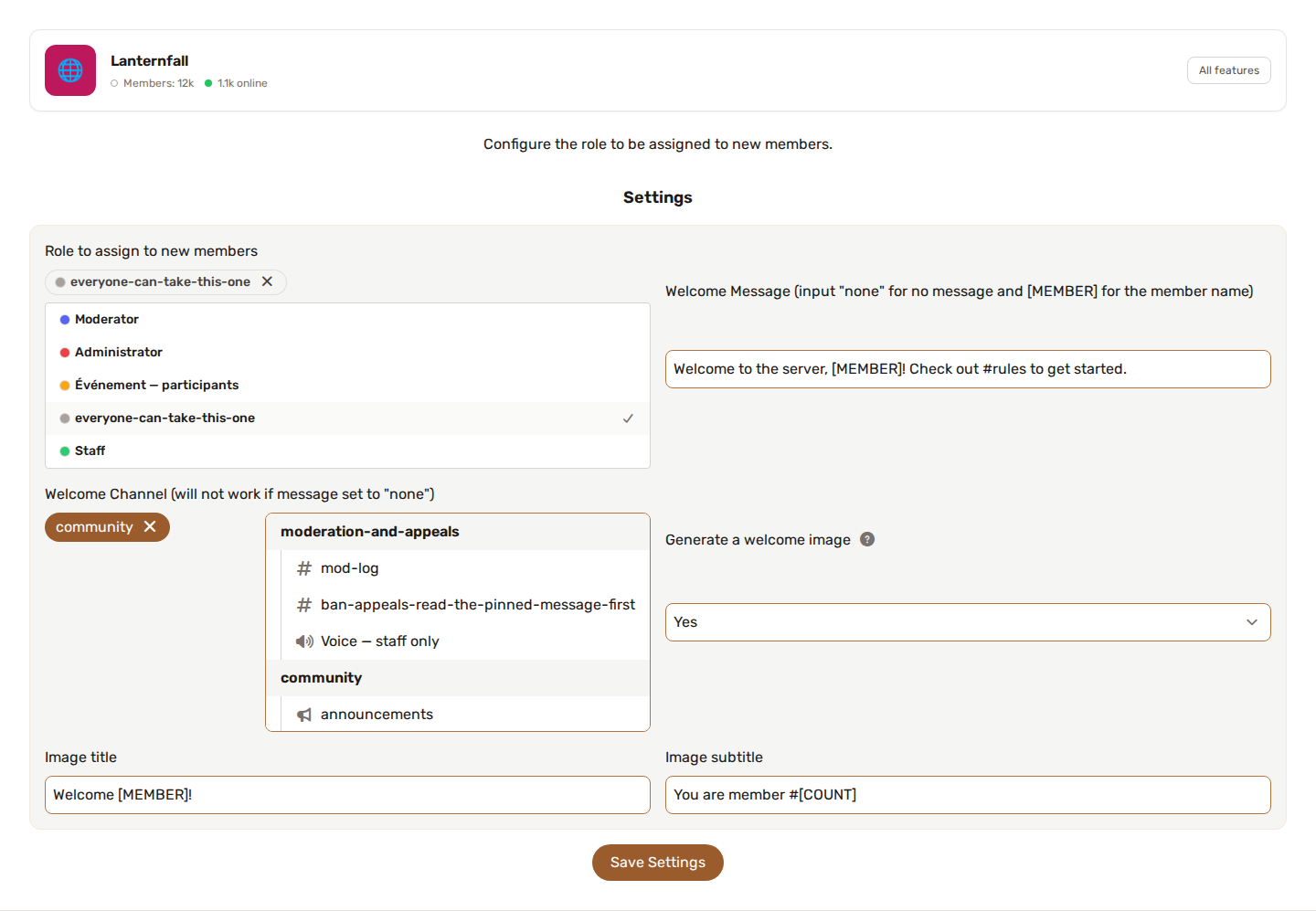
To configure Auto Join Role:
- Enable the feature.
- Open the feature configuration.
- Select the role to assign on join.
- Save the configuration.
Make sure the bot can manage the selected role.
A role is optional — you can leave it unset and use the feature purely for a welcome message or welcome image.
👋 Welcome message
You can post a text message in a channel whenever a member joins.
- Welcome Message — the text to send. Use
[MEMBER]to mention the new member. Set it tononeto disable the text. - Welcome Channel — the channel where the message (and/or image) is posted.
Example:
Welcome [MEMBER] to the server! 🎉
The text and the image are sent together in a single message. A welcome channel is required for either of them. If the role cannot be assigned, the welcome is still posted.
🖼️ Welcome image
Turn on Generate a welcome image to post a generated welcome card in the welcome channel when a member joins.
The card shows the member's avatar with custom text, and works even if the welcome message is set to none.
You can customize:
- Image title — top line. Placeholders:
[MEMBER](username),[SERVER](server name),[COUNT](member number). - Image subtitle — second line, same placeholders.
- Background image URL — a direct link to a PNG/JPG background. Leave blank for a generated gradient.
- Accent color — a hex color (e.g.
#5865F2) used for the avatar ring and gradient.
The bot needs the Attach Files permission in the welcome channel for the image to appear. If a background URL or avatar can't be loaded, the card still renders with a gradient and the member's initial.
When left blank, the title reads Welcome [MEMBER]! and the subtitle reads You are member #[COUNT]. The accent color defaults to Discord blurple, #5865F2.
🪜 Discord role hierarchy
Discord only lets a bot assign roles below the bot's highest role.
If the bot cannot assign the role:
- Move the bot role higher in the Discord role list.
- Make sure the target role is below the bot role.
- Make sure the bot has Manage Roles permission.
🛡️ Interaction with Anti-Raid
Anti-Raid runs before Auto Join Role.
If Anti-Raid removes a suspicious new member, Auto Join Role will not try to assign a role to that removed member.
💡 Best practices
- Use a safe default role with limited permissions.
- Do not automatically assign staff or privileged roles.
- Keep the bot role above the assigned role.
- Test with a secondary account when possible.