Social Alerts
Updated by Maxime_48 · 1 week ago · Views: 284
Social Alerts announce new posts from the creators and communities you follow, straight into a Discord channel — YouTube videos, Twitch streams going live, Reddit posts, Bluesky posts, or any RSS feed.
🔔 How it works
- Enable Social Alerts and open the Social Alerts page.
- Click New alert, pick a platform, and enter the source you want to watch.
- Choose the channel the announcement should be posted in.
- Optionally pick a role to mention and write your own message.
- Save. The bot checks the source regularly and posts an embed every time something new goes out.
Everything is managed from the panel — there is no slash command for this feature.
🌐 Supported platforms
| Platform | What triggers an alert | What to enter |
|---|---|---|
| 📺 YouTube | A new video is published | The channel's @handle, its channel URL, or its UC… channel ID |
| 🎮 Twitch | The streamer goes live | The channel name (e.g. shroud) or its Twitch URL |
| A new post appears | A subreddit (r/gaming) or a user (u/spez) |
|
| 🦋 Bluesky | A new post is published | The handle (e.g. name.bsky.social) or the profile URL |
| 📰 RSS / Atom | A new item appears in the feed | The full feed URL, starting with http:// or https:// |
A few platform details worth knowing:
- Reddit skips pinned (stickied) posts, so a permanent announcement thread won't be re-announced.
- Bluesky only announces original posts — reposts are ignored.
- Twitch announces the start of a stream. A stream that is still running is never announced twice; a brand-new stream later on is.
- RSS feeds must be reachable on the public internet. Feed URLs that resolve to a private or internal address are rejected.
Twitch needs a one-time setup by the platform administrator. Twitch is the only platform that requires API credentials. If they haven't been configured yet, Twitch alerts will show an error on their card while all other platforms keep working normally.
✍️ The announcement message
By default the bot posts a short message adapted to the platform ("Name just posted a new video!", "Name is now live on Twitch!", and so on).
You can replace it with your own text and use these placeholders:
| Placeholder | Replaced by |
|---|---|
{name} |
The channel, feed, subreddit or account name |
{title} |
The title of the video, post or stream |
{url} |
The link to the content |
If you selected a role to mention, it is added at the beginning of the message automatically — you don't need to write the mention yourself.
Under the message, the bot posts an embed in the platform's colors with the title, the link, an excerpt, the thumbnail or preview image, and the publication date.
🚫 No backlog spam
The very first check of a new source does not announce anything. It simply records what is already published, so you don't get flooded with a creator's entire back catalogue the moment you add them.
From then on, only genuinely new content is announced. If a source publishes a lot at once, the bot announces a handful per check and keeps up on the following ones (up to five per check). Anything published more than 48 hours ago is never announced, so a source that resets itself cannot replay its old posts.
🗂️ Managing alerts
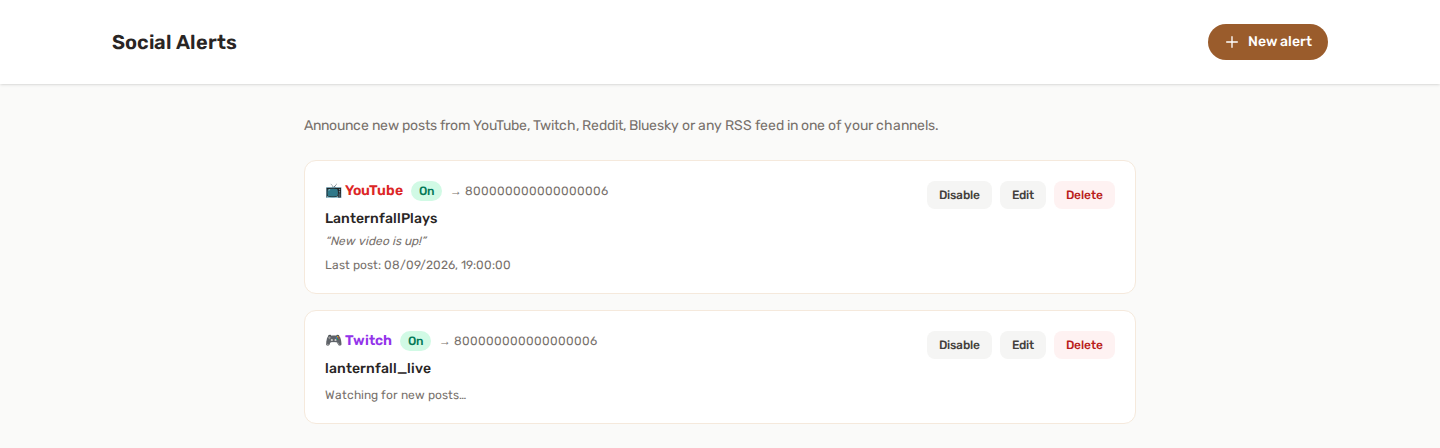
Each alert card shows its platform, its source, the destination channel, and its current state:
- Waiting for the first check — the alert was just created.
- Watching for new posts — the source was read successfully, nothing new yet.
- Last post — the date of the most recent item the bot saw.
- A ⚠️ line appears if the source could not be read (wrong name, deleted channel, feed offline…). The bot keeps retrying on its own.
Available actions:
- Enable / Disable — pause an alert without deleting it.
- Edit — change the platform, source, channel, mention or message. Changing the platform or the source resets the alert, and the next check becomes a fresh baseline (so you don't get a burst of old content).
- Delete — remove it entirely.
✅ Permissions
Social Alerts only needs the baseline bot permissions (View Channels, Send Messages, Embed Links) in the announcement channel. See Feature permissions.
One extra note about mentions: to actually ping a role, either tick Allow anyone to @mention this role in the role's Discord settings, or grant the bot the Mention @everyone, @here, and All Roles permission. Without either, the mention still appears in the message but nobody gets notified.
💡 Best practices
- Use a dedicated channel (
#announcements,#streams,#new-videos) so alerts don't get lost in conversation. - Create a dedicated "notify" role members can self-assign with Reaction Roles, and mention that role instead of
@everyone. - For a site that has no YouTube or Bluesky presence, look for its RSS feed — most blogs, news sites and podcast platforms still publish one.
- Disable rather than delete an alert for a creator who is on hiatus; you keep the configuration for later.