Suggestions
Updated by Maxime_48 · 1 week ago · Views: 318
Suggestions lets your members submit ideas with /suggest, vote on them with 👍/👎, and lets your staff approve, reject, or mark them implemented — all reviewed from the web dashboard.
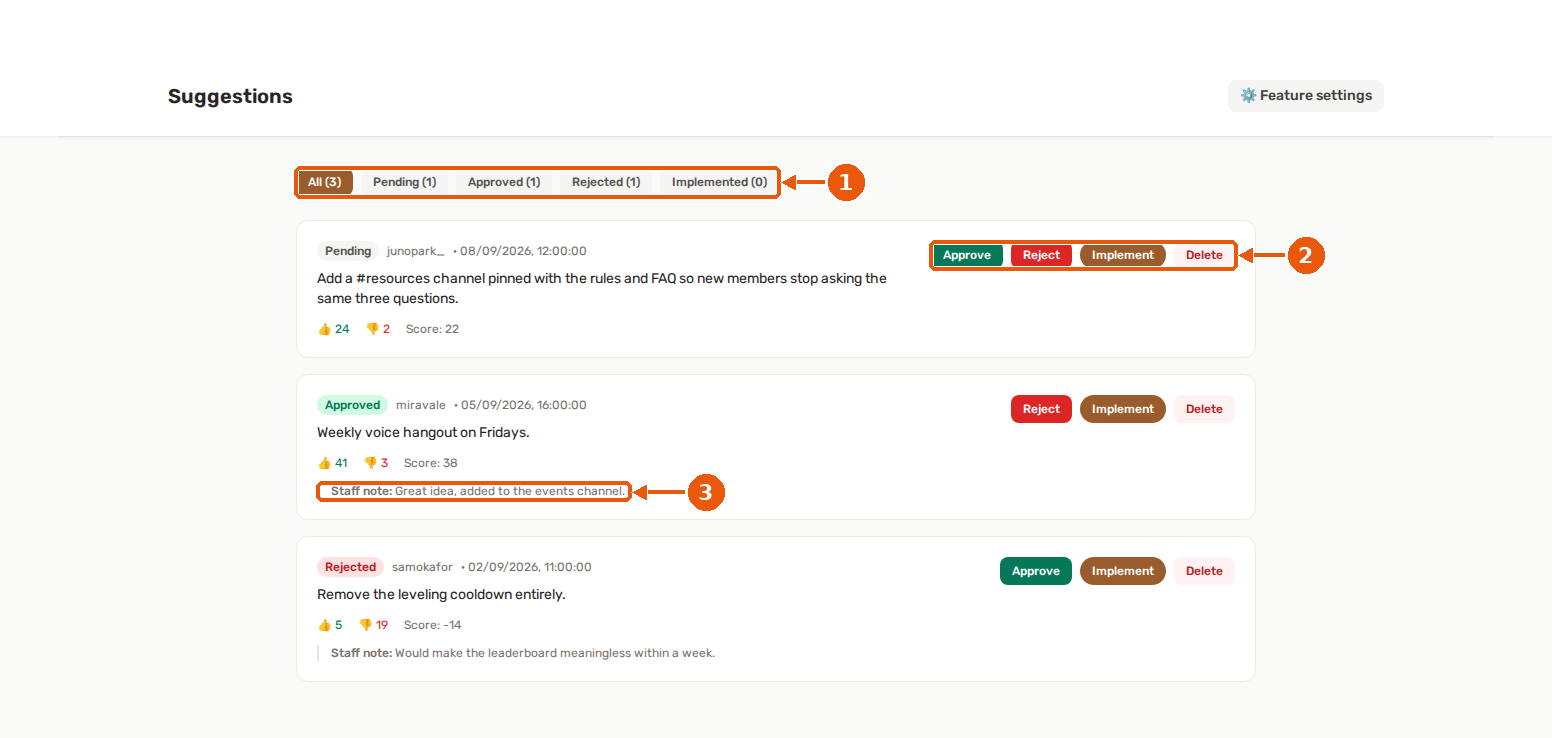
- Status filters with the number of suggestions in each state.
- Review buttons: Approve, Reject, Implement or Delete a suggestion.
- The staff note explains the decision.
💡 How it works
- Enable Suggestions and pick a suggestions channel in the feature settings.
- A member runs
/suggest <your idea>anywhere in the server (up to 2000 characters). - The bot posts the suggestion as an embed in your suggestions channel, with optional 👍/👎 vote buttons.
- Your staff opens the Suggestions page in the panel and sets a status — the Discord embed updates automatically.
A suggestions channel must be configured for /suggest to work. Until then, members get a friendly error.
If you set a text prefix, !suggest <your idea> does the same thing. See Text commands and the prefix.
🗳️ Voting
When voting is enabled, each suggestion shows 👍 and 👎 buttons with live counts.
- Clicking a button records your vote.
- Clicking the same button again removes your vote.
- Clicking the opposite button switches it.
Each member counts once per suggestion. Vote tallies are kept in sync and visible in the panel, which also shows the score (👍 minus 👎).
🏷️ Statuses
From the panel, staff move each suggestion through:
- Pending — newly submitted, awaiting review.
- Approved — accepted, on the roadmap.
- Rejected — declined.
- Implemented — shipped.
When you change a status you can add an optional staff note (a reason, up to 1000 characters). The note and the new status are reflected on the Discord embed right away. Delete removes a suggestion from the panel and deletes its Discord message too.
⚙️ Options
| Option | What it does |
|---|---|
| Suggestions channel | Where suggestions are posted. Required. |
| Allow voting | Show 👍/👎 buttons on each suggestion. |
| Create a discussion thread | Open a thread under each suggestion for discussion. |
| Anonymous suggestions | Hide the author on the embed. The author is still recorded in the panel for moderation. |
🔗 Works with your other features
- Server Logs: when the Engagement category is enabled, new suggestions and every status change are logged.
- Leveling: the reward graph has the triggers On suggestion created and On suggestion approved. The second one fires only when a suggestion becomes approved for the first time.
✅ Permissions
Suggestions needs the baseline bot permissions (View Channels, Send Messages, Embed Links). If you enable discussion threads, the bot also needs Create Public Threads. See Feature permissions.
👍 Recommended setup
- Create a dedicated
#suggestionschannel your members can see. - Enable Suggestions and select that channel.
- Decide whether to allow voting and discussion threads.
- Tell your members to use
/suggest. - Review incoming suggestions from the panel and keep statuses up to date.
💡 Best practices
- Keep voting on — it surfaces what the community actually wants.
- Use Implemented to show members their feedback leads somewhere.
- Add a short staff note when rejecting, so the reason is clear.
- Use anonymous mode for sensitive feedback, but remember the author is still visible to staff in the panel.