Discord Moderation
Updated by Maxime_48 · 1 week ago · Views: 356
The Moderation feature lets your team manage Discord sanctions from the YAWBDB panel and through slash commands.
It centralizes actions, history, appeals, and logs so your moderation team can work from one place.
🎬 Supported actions
YAWBDB supports common moderation actions:
- Ban
- Unban
- Mute
- Unmute
- Kick
- Warn
- Softban
Actions can be performed from the panel or from Discord slash commands, depending on permissions.
🛠️ Moderation panel
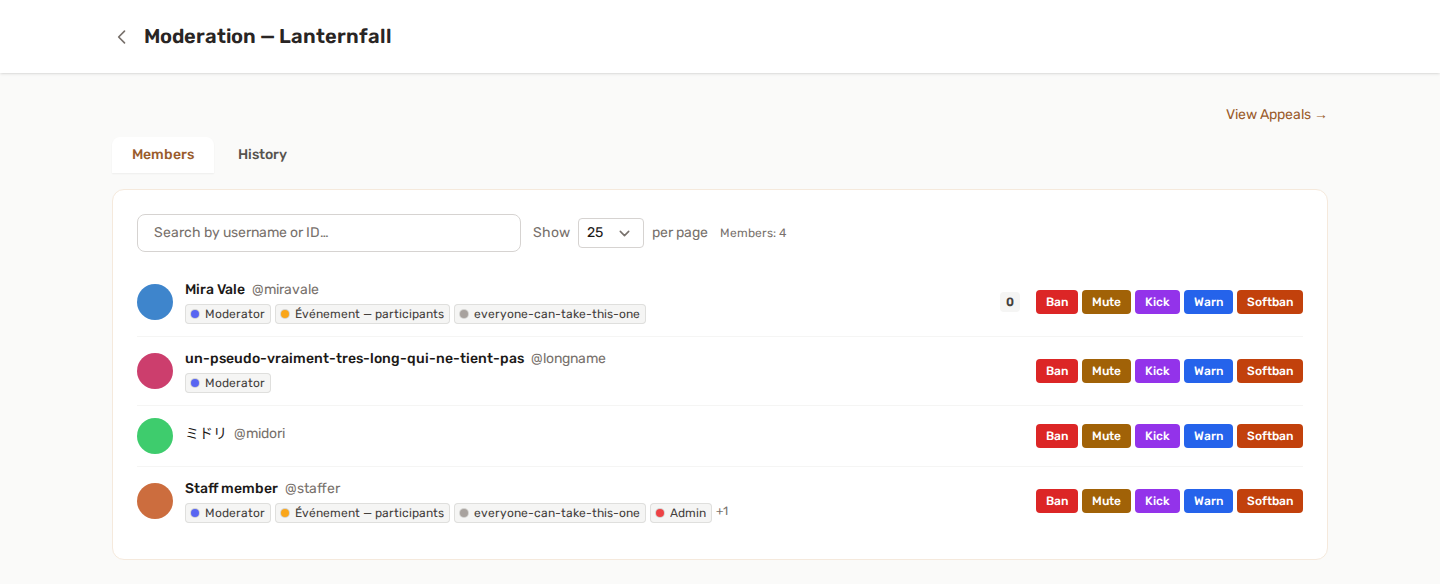
The moderation page lets staff search members and apply actions directly from the panel.
A typical moderation workflow:
- Open the server's Moderation page.
- Search for a member by username or ID.
- Choose an action such as warn, mute, kick, ban, or softban.
- Enter a reason and duration if needed.
- Confirm the action.
- Review the result in the sanction history.
📜 Sanction history
Every sanction is stored in the server's moderation history.
The history can include:
- Target member
- Sanction type
- Reason
- Moderator
- Duration
- Active or expired status
- Source of the action
- Date
This makes it easier to review previous actions and understand a member's history.
📋 Active sanctions
Temporary bans and mutes can expire automatically.
Active sanctions can also be lifted from the panel when the team decides to remove them early.
Depending on configuration, warnings may also be tracked as active records that can be dismissed or removed.
⌨️ Slash commands
Common moderation commands include:
/ban/unban/mute/unmute/kick/warn/softban/history/reason/my-history/clear-history
Discord permissions are checked before actions are performed.
/clear-history and /my-history are described in History commands.
📋 Log channel
You can configure a moderation log channel.
When a sanction is created or lifted, YAWBDB can post an embed containing details such as:
- Action type
- Target user
- Moderator
- Reason
- Duration
- Whether a DM was sent
A log channel helps your staff team stay informed without manually writing logs.
⚖️ Appeals
YAWBDB can generate appeal links for sanctions.
Appeals are created for bans, mutes and warnings, and only while the Moderation feature is enabled on the server.
Depending on the action and configuration, the user may receive a DM with a link where they can submit an appeal.
Staff can review appeals from the panel and accept or reject them.
⚙️ Settings
In the Moderation feature settings, besides the log channel, you can set:
- Allowed moderator roles (slash commands): only members holding one of these roles can use the moderation slash commands. Leave it empty to rely on Discord permissions alone.
- Auto-action after N warns (0 = disabled): from 0 to 10. When a member reaches that many active warnings, YAWBDB applies the action chosen in Auto-action type on warn threshold (mute, kick or ban) on its own. For a mute, Auto-mute duration (minutes) sets the length, from 1 to 40320 minutes.
- Mute mode: Discord timeout (28 days at most) or Mute role, which allows permanent mutes and needs a Mute role (required for role mode) that denies Send Messages in the relevant channels.
- Appeal window / Auto-close expired appeals: see Sanctions and appeals.
🔑 Required Discord permissions
The bot needs the correct Discord permissions for moderation actions.
Examples:
- Ban Members for bans and unbans
- Kick Members for kicks
- Moderate Members for Discord timeouts
- Manage Roles if using role-based mute
- Send Messages for logs and notifications
If an action fails, check the bot role position and permissions in Discord.
💡 Best practices
- Always include a clear reason.
- Use temporary sanctions when possible.
- Keep a dedicated log channel.
- Review appeals regularly.
- Use
/historybefore applying severe sanctions. - Make sure only trusted staff can access moderation actions.