Discord Reports
Updated by Maxime_48 · 1 week ago · Views: 326
Discord Reports let members report users directly from your Discord server.
Reports are handled by your moderation team through private Discord channels and the YAWBDB panel.
👤 Member command
Members can use:
/report @user reason [note]
The report includes:
- Reporter
- Target user
- Reason
- Optional note
The reason is picked from a list: Spam, Harassment, Inappropriate content, Threat or Other. The note is optional and holds up to 500 characters. You cannot report yourself or a bot.
⏱️ Rate limits
Each member can send a limited number of reports per 24 hours. Max reports per user per day sets it, from 1 to 10, with 3 by default.
Past the limit, the bot tells the member privately to try again tomorrow.
This prevents abuse while still allowing members to contact staff when needed.
🔒 Private report channel
When a report is created, YAWBDB opens a private Discord channel for it, as soon as a Reports category is set in the feature settings.
The channel is visible to:
- The reporter
- Configured staff roles
- Other users added by staff, if needed
The channel contains report details and action buttons for staff.
👮 Staff actions
Staff can update a report from Discord or the panel.
Common actions include:
- Mark as under review
- Resolve
- Dismiss
- Sanction target
- Add target to the channel
- Remove target from the channel
When the report is resolved or dismissed, the reporter may keep read-only access to the channel history.
📥 Panel reports page
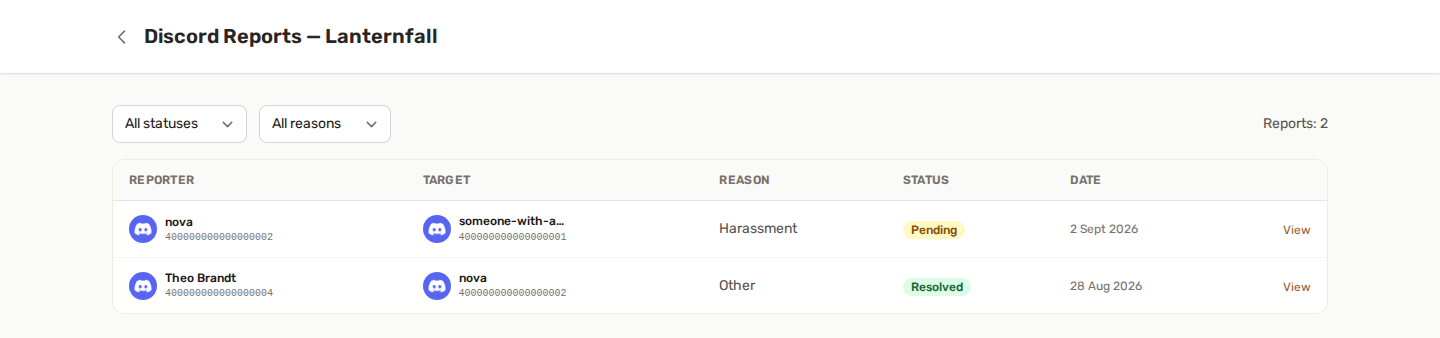
The Reports page lets staff review and manage reports from the web panel.
Staff can:
- Browse reports
- Filter by status or reason
- View the report thread
- Reply to the reporter
- Change status
- Add an internal staff note
- Export the thread as Markdown or HTML
- Delete a report, if allowed
🔄 Bidirectional sync
Messages and status updates can sync between Discord and the panel.
Examples:
- A staff reply sent from the panel appears in the Discord report channel.
- A message sent in the Discord report channel appears in the panel thread.
- Status changes update on both sides.
This lets staff work from the place they prefer.
ℹ️ /info command
Staff with the Kick Members permission can use /info to look up moderation context for a member, or for a Discord user ID when the person has left the server.
It can show information such as:
- Account creation date
- Server join date
- Report summary (total, and how many are pending or under review)
- Sanction summary (total, and how many are active)
- Recent moderation history
- Panel account, when the person has one
📧 Email notifications
Depending on preferences and roles, YAWBDB can send email notifications for new reports or report replies.
Users can control relevant email preferences from their profile.
👍 Recommended setup
- Enable Discord Reports.
- Configure the report category or channel behavior.
- Select staff roles.
- Configure a role to ping, if needed.
- Set the daily report limit.
- Submit a test report.
💡 Best practices
- Keep report channels private.
- Use internal notes for staff-only context.
- Resolve or dismiss reports when finished.
- Do not leave old reports open forever.
- Use sanctions carefully and review evidence before acting.