Use the web dashboard
Updated by Maxime_48 · 1 week ago · Views: 510
The YAWBDB dashboard is the central place where you manage your Discord servers, features, team members, notifications, and account settings.
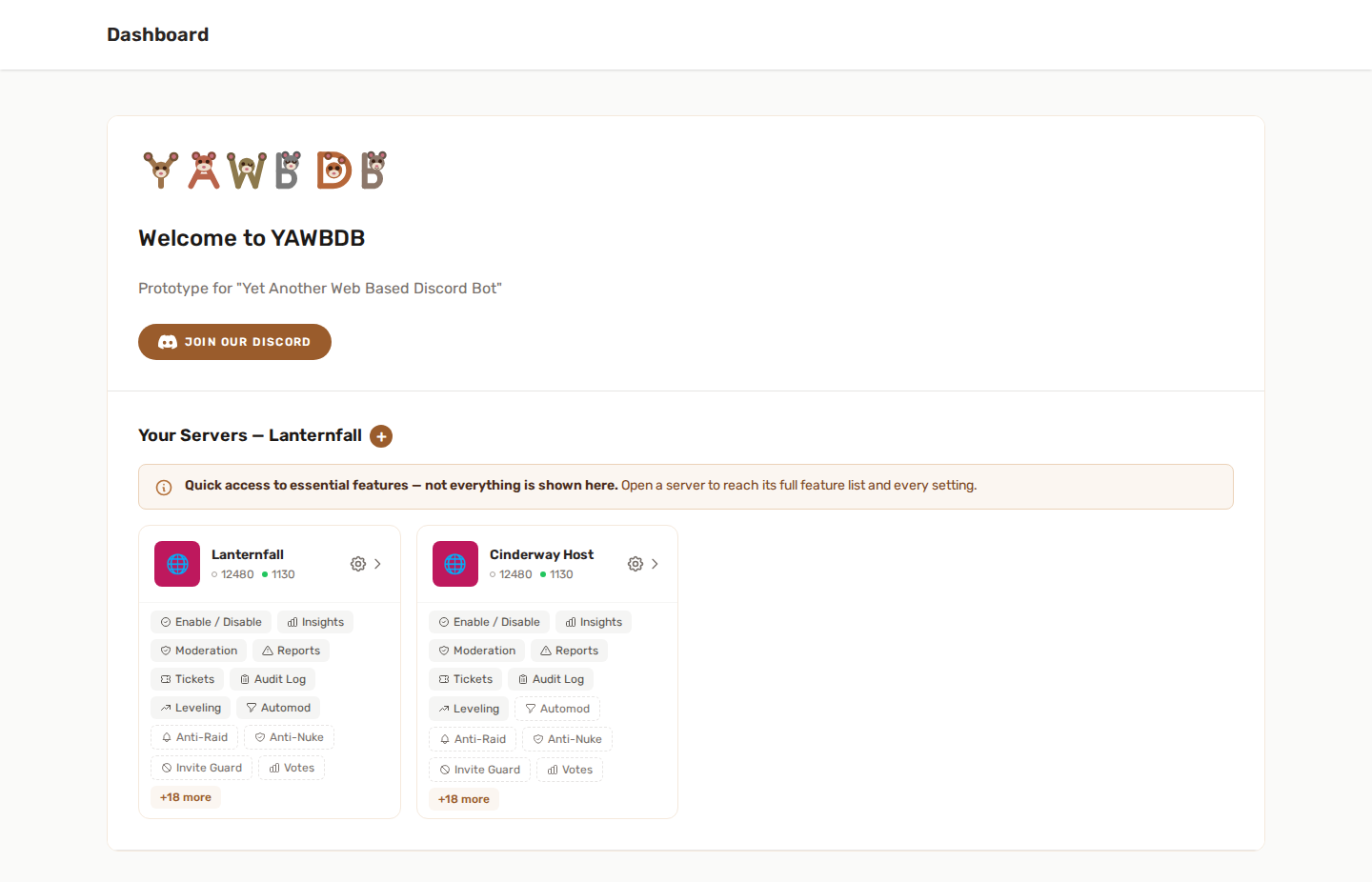
🖥️ Dashboard overview
After logging in, your dashboard shows the Discord servers connected to your YAWBDB account or team.
Each server appears as a card with quick actions. Depending on your permissions and enabled features, you may see buttons such as:
- Enable / Disable — switch server features on or off
- Insights — the server analytics
- Moderation, Reports, Tickets and Audit Log — for members who can moderate the server
- Feature shortcuts — one button per feature, for example Custom Commands, Temp Voice, Games, Automod or Leveling (see below)
- Remove — disconnect the server from YAWBDB
⚡ Feature shortcuts
The shortcut buttons open a feature's page or settings in one click. Features that are already active on the server come first, and the card shows the first six with a +N more button to expand the rest (Show less folds them back). A shortcut for a feature that is not active yet has a dashed outline; clicking it offers to activate the feature.
Shortcuts only cover the essentials. Open a server to reach its full feature list and every setting.
🧭 Navigation bar
The navigation bar gives access to platform-wide areas such as:
- Dashboard
- Chat
- Friends
- Wiki
- Admin or backoffice pages, if your account has access
- Notification bell
- Profile and account settings
Some entries only appear when your account has the required role or when the feature is relevant to you.
🗂️ Server pages
Most server tools are organized into dedicated pages rather than hidden inside Discord commands.
For example:
- Leveling has its own configuration and leaderboard page.
- Automod has its own rule editor.
- Moderation has member search and sanction history.
- Reports and Tickets have list pages and detail pages.
This makes it easier for server teams to work together without needing access to the bot's code or configuration files.
👤 Profile menu
Your profile menu includes personal settings and user-facing tools.
Depending on your account, you may find:
- Profile settings
- Linked accounts
- Email notification preferences
- My Reports
- My Tickets
- Logout
If your Discord account is linked, YAWBDB can connect your panel account to Discord reports, tickets, appeals, and other Discord-based features.
🔔 Notification bell
The notification bell groups important updates in one place.
It can show:
- Platform announcements
- Unread chat messages
- Friend requests
- Support ticket updates
- Report or ticket notifications for staff
- Moderation-related alerts
The bell is role-aware, so it only shows items relevant to your account.
🌗 Theme
Pick system, light, dark or midnight from the Appearance selector in the navigation bar (it is also on the home page). System follows your device; the other three stay fixed until you change them again. The choice applies at once and is saved on your account, or in this browser if you are not signed in.
🌍 Language
The dashboard is fully multilingual. Pick your language from the language selector in the navigation bar (in the menu on a phone, and on the sign-in pages) and the whole panel switches instantly — your choice is remembered for next time. Until you pick one, the panel uses your browser's language when it is one of the 14. If your language isn't fully translated yet, anything missing falls back to English.
The panel comes in 14 languages: English, French, German, Spanish, Italian, Dutch, Polish, Turkish, Russian, Japanese, Korean, Chinese, and Portuguese in two versions, Brazil and Portugal.
Far more of the panel now reads in your language than before: activity log entries written from now on, sign-in and sign-up messages, validation errors, sanction types, and the default team roles all follow your account's language, not just the main pages.
The emails follow the same choice. Address verification, password reset, ticket and report notifications, appeal decisions and the "your export is ready" message are all written in the language your account is set to — whatever language the server itself runs in.
The wiki follows the same choice. Each language has its own version of the wiki, at its own address. Pick a language in the navigation bar while you read an article and you land on the same article in that language. If the article has not been translated yet, you get the English text with a note that says so. Articles carry no language list of their own: the navigation bar is the only place where the language changes. If you never picked a language, the wiki stays in English and offers a link to the version in your browser's language.
🕒 Dates and time zone
Every date and time in the panel is shown in your own time zone, the one your browser reports, and written the way your panel language writes it. A moment from the last day reads as "12 minutes ago"; older ones show the date and the time. Hover over a date to see it in full, with the day of the week and the time zone it is written in.
Some dates are the same for everyone and do not move with your time zone, for example a birthday, which is a day on the calendar and has no time of day.
📜 Terms of Service and Privacy Policy
The Terms of Service and the Privacy Policy are linked in the footer of the home page, of the sign-in pages and of every page once you are signed in. They are available in every language of the panel, and the English text is the one that prevails if a translation differs.
📚 Reading this wiki
The side menu lists every section of the wiki. On an article page it opens only the section you are reading, so the titles above the text stay short; the other sections stay folded until you open them, and your choice is remembered in this browser. Each section shows its own small drawing and how many pages it holds.
An article with six sections or more also gets an "On this page" list: on a wide screen it sits to the right of the text, and below that width it folds into a box above the article. Wide tables and long lines of code scroll inside their own box, so the page itself never moves sideways on a phone.
🔑 Permissions
Not every user sees the same dashboard.
Access depends on:
- Your team role on the server
- Your platform role, if any
- Whether your Discord account is linked
- Whether the feature is enabled
If you cannot see or edit something, ask the server owner or a team admin to check your permissions.
🔒 Email verification
As a security measure, every account must verify its email address before using the dashboard — click the link in the email you receive after signing up (the panel offers a resend button if needed). Accounts created by logging in with Discord are already verified.
Until the address is verified, a window you cannot close covers the panel and asks you to check your inbox (and your spam folder). Click Send verification email to get the link, then Send again if it did not arrive, and refresh the page once you have clicked the link. Log out is also available from that window. If you change your email address in your profile, the new address has to be verified again and a new link is sent to it.