Scheduled Messages
Updated by Maxime_48 · 1 week ago · Views: 316
Scheduled Messages let you plan messages ahead of time and have the bot post them automatically — once, or on a repeating schedule.
⏰ How it works
- Enable Scheduled Messages and open the Scheduled Messages page.
- Click New message, pick a channel, write the message (up to 2000 characters) and/or attach an embed, and choose when to send it.
- Optionally set it to repeat daily, weekly or monthly.
- The bot checks for due messages every minute and posts it automatically at the scheduled time. Recurring messages are rescheduled for their next run; one-off messages are disabled after sending.
Everything is managed from the panel — no commands needed.
🔁 Recurrence
| Option | Behaviour |
|---|---|
| One-off | Sent once, then disabled. |
| Daily | Repeats every day at the same time. |
| Weekly | Repeats every week. |
| Monthly | Repeats every month. |
If the bot is offline at the scheduled time, it catches up when it reconnects and posts the message once — recurring schedules then advance to their next future run, so you never get a burst of missed messages.
🗂️ Managing messages
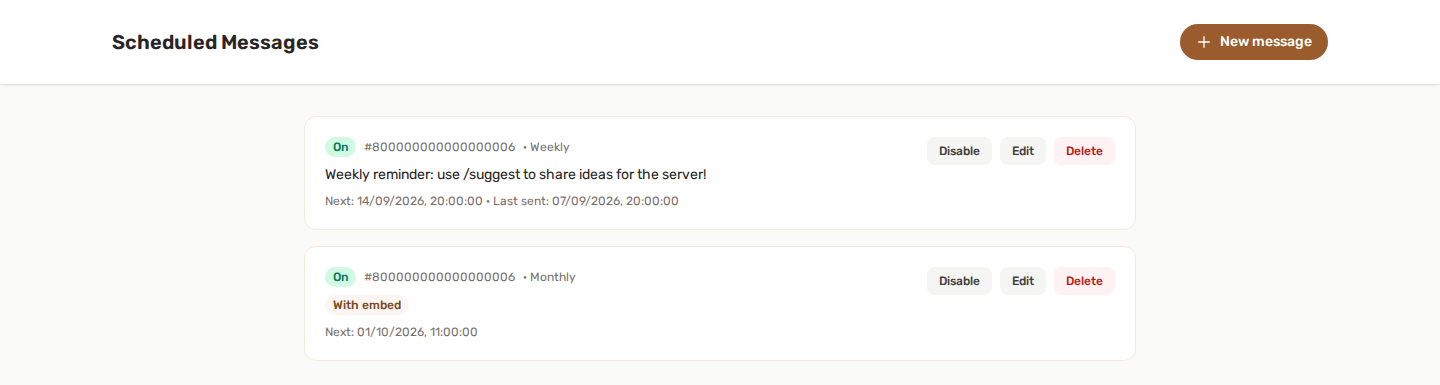
Each scheduled message shows its channel, next run time, last sent time, recurrence, whether it has an embed, and whether it's enabled.
- Enable / Disable — pause a schedule without deleting it.
- Edit: change the channel, content, embed, time or recurrence.
- Delete — remove it entirely.
All three take effect immediately, including on a message that is due right now: the bot asks the panel one last time before every single post, so a schedule you disabled, deleted or moved a few seconds earlier is not sent. The same last-second check reads the content, so an edit made just before a run goes out instead of the version it replaced.
Turning the whole feature off stops every schedule, without touching them. Your messages keep their settings and their recurrence; nothing is sent while the feature is off. Turn it back on and they resume from now — a schedule that came due during the pause posts once, not once per missed occurrence.
🎨 Embeds
A scheduled message can be plain text, an embed, or both, but never empty. Tick Attach an embed in the message form to send a rich embed instead of, or alongside, the plain message. It is composed with the same editor as the Embed Builder, and you can start from one of your saved embeds. The plain text part holds up to 2,000 characters. Messages that carry an embed show a With embed badge in the list. Pick Start from a saved embed to begin from one of your saved embeds: you get an independent copy, so editing the saved one later does not change this one.
✅ Permissions
Scheduled Messages only needs the baseline bot permissions (View Channels, Send Messages) in the target channel. See Feature permissions.
If the message carries an embed, the bot also needs Embed Links.
💡 Best practices
- Use it for recurring reminders, rules refreshers, event countdowns or weekly recaps.
- The time you pick follows the time zone of your browser, so double-check it before saving.
- Disable rather than delete a seasonal schedule you'll want again later.